 Pictura
AI Photo Enhancer for iPhone — Unblur, Restore & Upscale Any Photo
Pictura turns blurry selfies, old family pictures, and low-resolution images into sharp, high-quality photos in one tap. Colorize black & white memories, upscale up to 4x, remove backgrounds, and create professional AI headshots — right on your iPhone.

Download Pictura free on the App Store
Free to download, free to try. Enhance your first photos in under a minute — no account required.
One app, every AI photo tool you need
Unblur and sharpen, restore old photos, colorize black & white, upscale to 4x, generate professional headshots, and cartoon yourself — see Pictura in action.
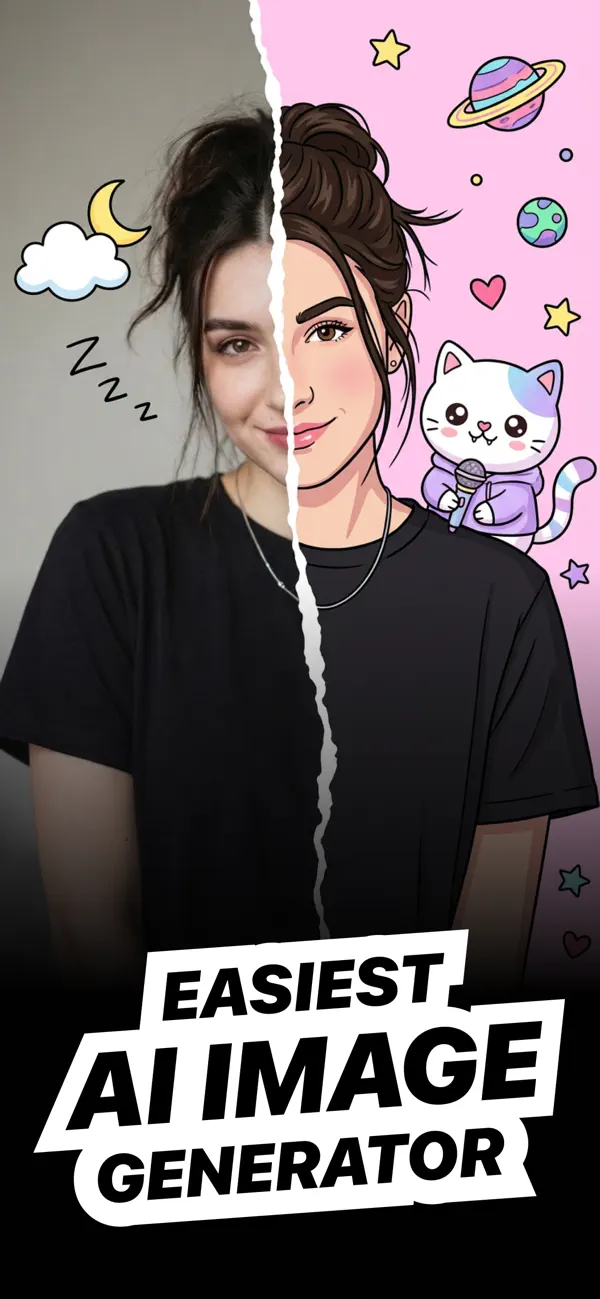
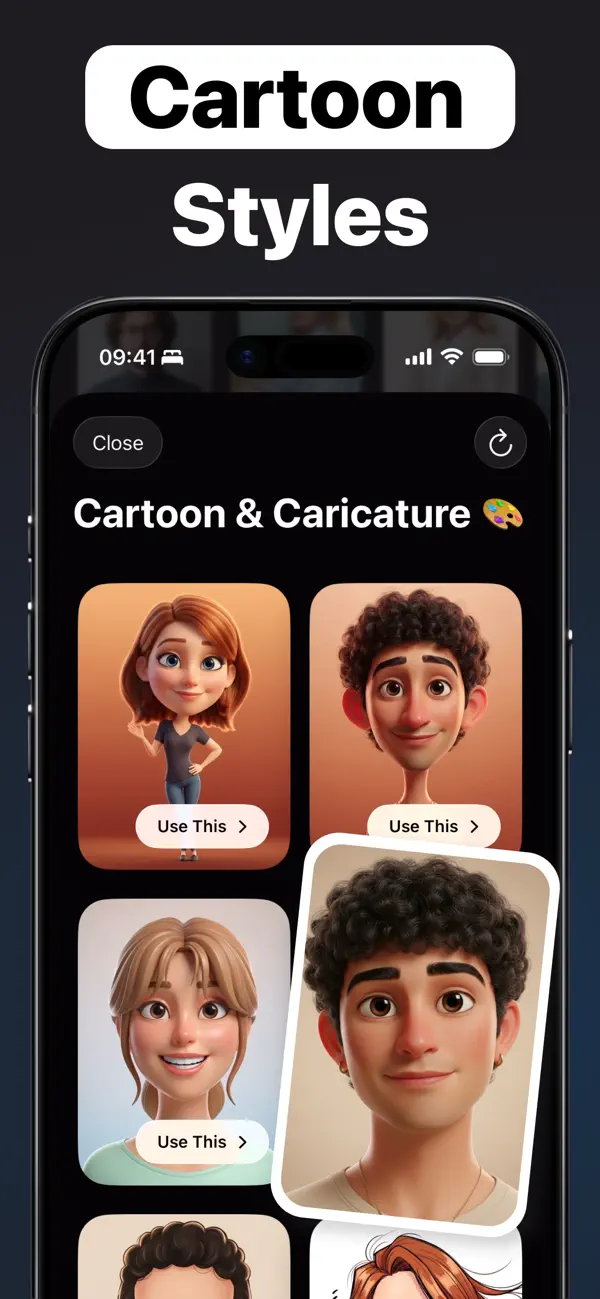
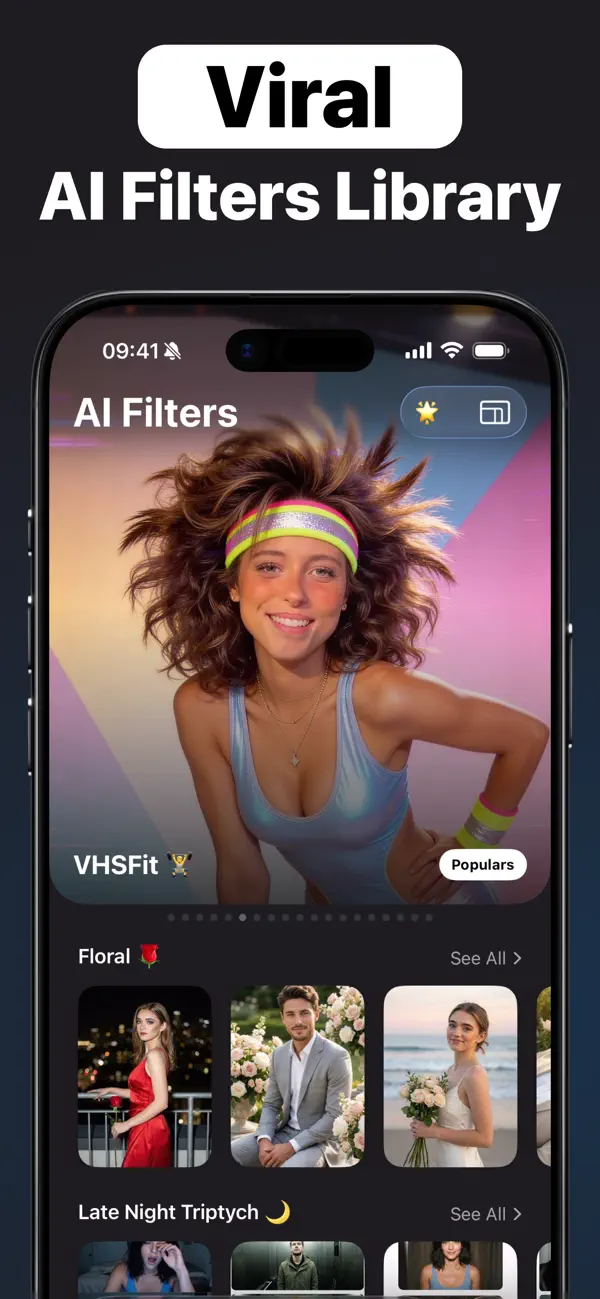
Enhance any photo in three taps
No editing skills needed. Pictura's AI does the heavy lifting — you just pick the photo and the result you want.
Pick a photo
Choose any image from your photo library or camera — a blurry selfie, an old scanned print, a low-res download, or anime art.
Tap an AI tool
Enhance, Restore, Colorize, Upscale 4x, Remove Background, Denoise, AI Headshot, or a Cartoon style. The AI processes it in seconds.
Save & share
Compare before and after, then save the high-quality result to your library or share it straight to social media. Your history keeps every edit.
Photo fix guides — step by step
Practical answers to the most common photo problems, and exactly how to solve each one with Pictura on your iPhone.
How to Unblur a Photo on iPhone
Make blurry pictures clear again with AI — fix camera shake, missed focus, and soft selfies in one tap.
Read the guide → RestoreHow to Restore Old Photos with AI
Repair scratches, fading, and damage on vintage family photos — straight from your iPhone, no scanner needed.
Read the guide → ColorizeHow to Colorize Black and White Photos
Add realistic color to old black-and-white pictures and bring family memories back to life.
Read the guide → UpscaleHow to Upscale an Image Without Losing Quality
Increase photo resolution up to 4x for printing, zooming, and posting — powered by AI detail generation.
Read the guide → EnhanceHow to Improve Photo Quality on iPhone
One-tap fixes for dull, soft, or low-quality photos: sharpness, lighting, noise, and resolution together.
Read the guide → HeadshotsAI Headshot Generator: Pro Headshots from a Selfie
Create a studio-quality professional headshot for LinkedIn and résumés — no photographer required.
Read the guide → CartoonHow to Cartoon Yourself from a Photo
Turn any portrait into a cartoon or caricature avatar with AI styles — perfect for profile pictures.
Read the guide → Cut outHow to Remove the Background from a Photo
Get clean AI cutouts of people and products on iPhone — for profile pictures, listings, and collages.
Read the guide → DenoiseHow to Fix Grainy Photos
Remove noise from low-light and night shots while keeping real detail — rescue your dark photos.
Read the guide → AnimeHow to Upscale Anime Art & Wallpapers
Enlarge anime images and artwork up to 4x with crisp lines — make low-res art wallpaper-ready.
Read the guide →Frequently asked questions
Quick answers about enhancing, restoring, and upscaling photos with Pictura.
How do I unblur a photo on my iPhone?
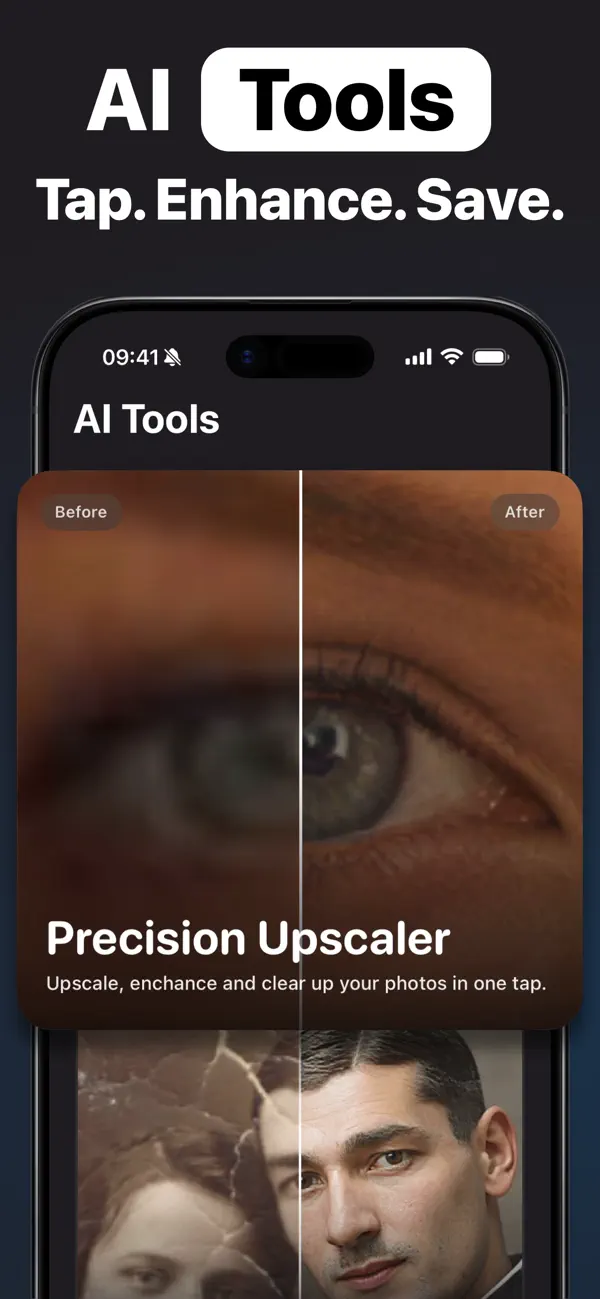
Open Pictura, pick the blurry photo, and tap the Precision Upscaler. The AI sharpens faces, eyes, and fine detail automatically — no manual sliders. Learn More
Can AI restore old or damaged photos?
Yes — Pictura repairs scratches, creases, and fading, and rebuilds facial detail in vintage photos. Just photograph the old print and apply Restore. Learn More
How do I colorize a black and white photo?
Choose the black-and-white photo and tap Colorize. Pictura's AI adds realistic color to skin, clothing, and backgrounds in one tap. Learn More
How do I increase the resolution of a photo?
Pictura upscales images up to 4x using AI that adds real detail as it enlarges — so photos stay sharp when printed or zoomed. Learn More
How can I improve photo quality on iPhone?
Use one-tap Enhance: it sharpens, reduces noise, fixes lighting, and boosts resolution in a single pass — on selfies, portraits, and landscapes. Learn More
How do I make a professional headshot from a selfie?
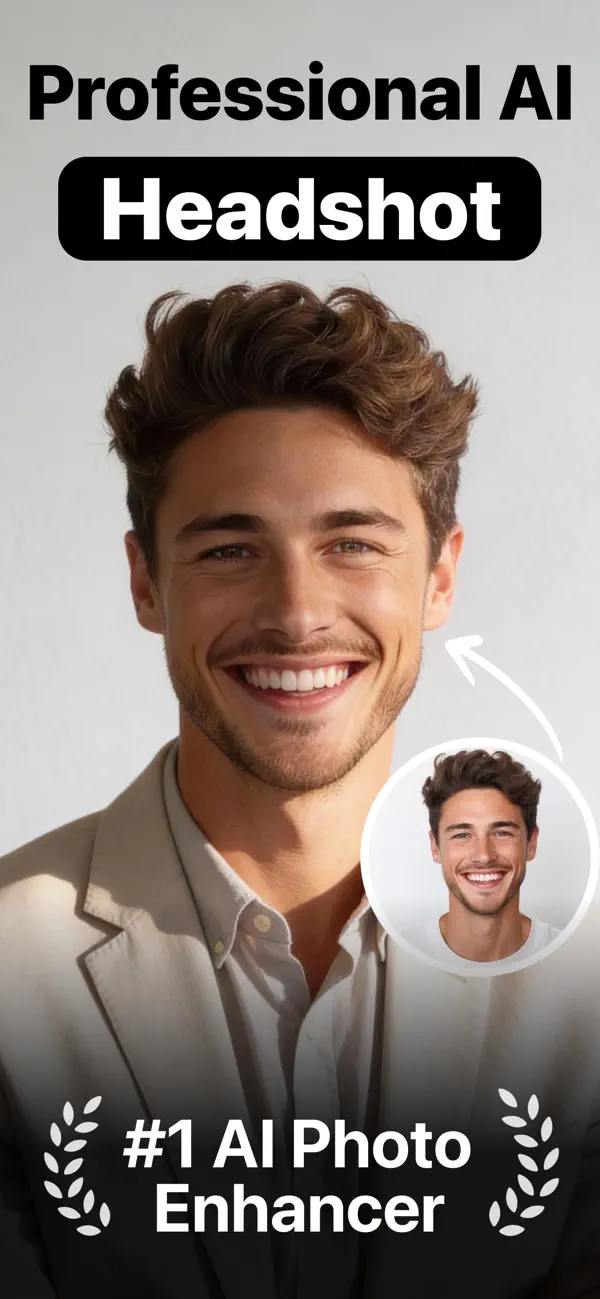
Use the Professional AI Headshot tool: pick a clear selfie and get a studio-quality headshot for LinkedIn or your résumé in seconds. Learn More
How do I turn a photo into a cartoon?
Pick a portrait and choose a Cartoon & Caricature style — Pictura redraws your photo as a cartoon character, ready for avatars. Learn More
How do I remove the background from a photo on iPhone?
Tap Remove Background and the AI cuts out the subject cleanly — including hair and fine edges — for profile pictures and product shots. Learn More
How do I fix grainy or noisy photos?
Apply Denoise to remove grain from low-light and night shots while keeping real detail — no desktop software needed. Learn More
Can I upscale anime art without losing quality?
Yes — Pictura's AI is tuned for anime and artwork too: enlarge up to 4x with crisp lines and clean colors. Learn More
Is Pictura free to download?
Yes — Pictura is free to download and free to try. Pictura Pro unlocks unlimited enhancements, all AI filters, and priority processing (weekly, monthly, or yearly plans). Get it on the App Store
Which devices does Pictura support?
Pictura runs on iPhone and iPad (iOS 26+). There's also a separate Pictura app for Mac for AI photo enhancement on macOS.
Your photos deserve better. Fix them in one tap.
Join thousands enhancing, restoring, and upscaling their photos with Pictura — rated 4.7★ on the App Store.